

CROSSBAR HELP
CROSSBAR HELP
CROSSBAR ACCOUNT SETUP & HELP RESOURCES
PLEASE FOLLOW THE BELOW USING THE NEW FYHA CROSSBAR WEBSITE AND NOT THE APP.
***PLEASE READ ENTIRE PAGE***
If you need additional help, please checkout the Crossbar Help Section below
CREATING YOUR ACCOUNT
- Account sign up needs to be done from the FYHA website and not from the main Crossbar website.
- Click "Sign Up" that will show at the top left of the site over your organization's logo.
- Enter the email address and password you'd like to set up for your account.
- A verification email will be sent to the email you enter to activate the Crossbar account.


Adding Your Participant
- Once you have verified the account, you'll be able to enter your name and phone number to complete your account set up
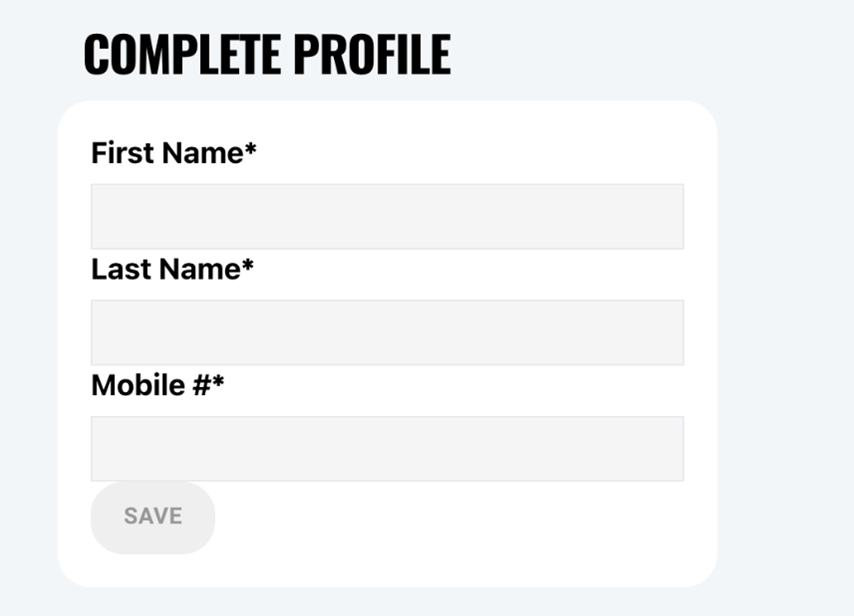
- After you complete your account setup, you'll be prompted to add a Participant/Player to your account:
A Participant can be either your player or for those who no longer have a kid in the program, but still are a member, you will create the participant as you. This will allow you to join the FYHA club and continue to get all member communications.
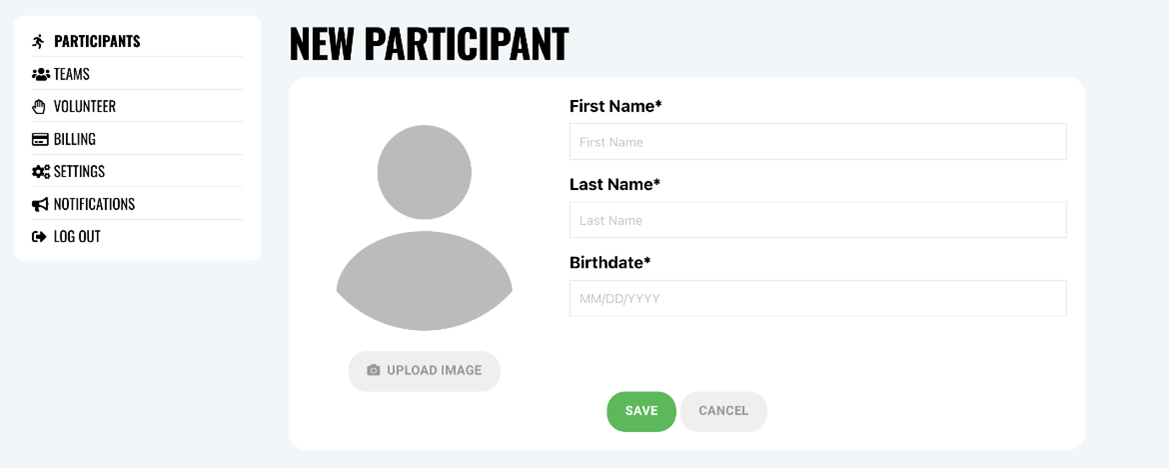
Adding additional Participant.
- Log into your Account and choose "Account"
- On the Participants tab of your Account menu, select "Add Participant"
- Complete Profile (name, birthdate)
***IMPORTANT*** After Adding Your Participant
- Click on your Participant profile
- Scroll down to Club
- Make sure your participant joins the Faribault Hockey Association Club.
- Joining the FYHA Club will show you as a member for FYHA and you will be included in all association communications.
- This will happen automatically when you register for the season, but doing this prior to season registration will guarantee you receive all FYHA Member communications.
Explanation:
When you sign up, it is just creating an account in general for Crossbar. When on the association page, you will create your participants that will then belong to the association club. Participants can be either a player or if you no longer have a player in the program a participant can be yourself. You will hit that join button on the club section to receive communications! This is manual so nobody is forced to have communications sent, and you can dis-join the club at any time.


Your Account Menu
When logged into your account on the FYHA website, you'll see the following options when you choose "Account."
Participants: Allows you to add participants (Players or FYHA Member without a player) that will be associated with the account, as well as edit details for each participants. Participants will belong to the account they are created under. You can add others to manage the participant under the profile settings.
Teams: This tab shows your assigned teams. Clicking on the team will take you to the team page.
Volunteer: Here you can sign up for volunteer events your organization has added, if they exist.
Billing: The Billing section of your Account allows you to view your balances/payments and update your payment methods on file.
Settings: Here you can update your account name, phone number, email address and password.
Notifications: Sets email notifications for games and practices. Ensure you have these selected to receive all communications from your organization.
Crossbar Help Website
Download Mobile App
After you have completed your account setup and creating your Participants, you can download the Crossbar App from your vendors app store.